User Guide
The complete manual for mastering Plantris.App
1. Overview
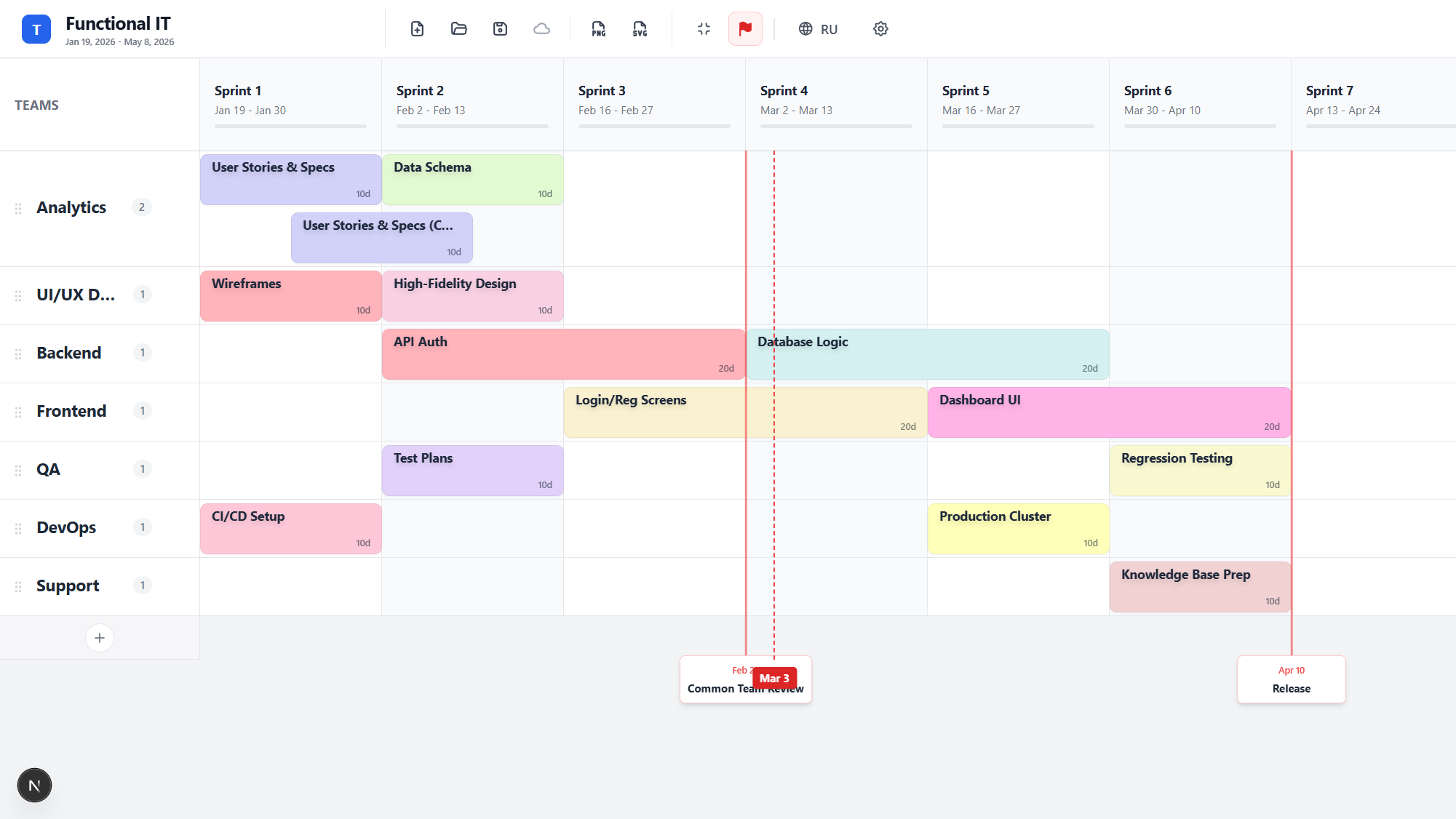
Plantris.App is a visual planning tool that helps you answer questions like: Who is working on what? When will work start? What can run in parallel? Where are the important milestones?
Core Concepts
- Resources (Teams): The rows in your plan. Can be real teams, people, roles, or capacity pools.
- Sprints: Fixed-length time boxes (columns). You can configure duration (1-4 weeks) and start days.
- Features: Work items on the grid (tasks, epics, projects).
- Milestones: Vertical lines marking important dates (releases, demos).
2. Teams & Resources
Adding & Renaming
Click 'Add Team' at the bottom left. The new team name is immediately editable. If you leave it empty and click away, it is removed.
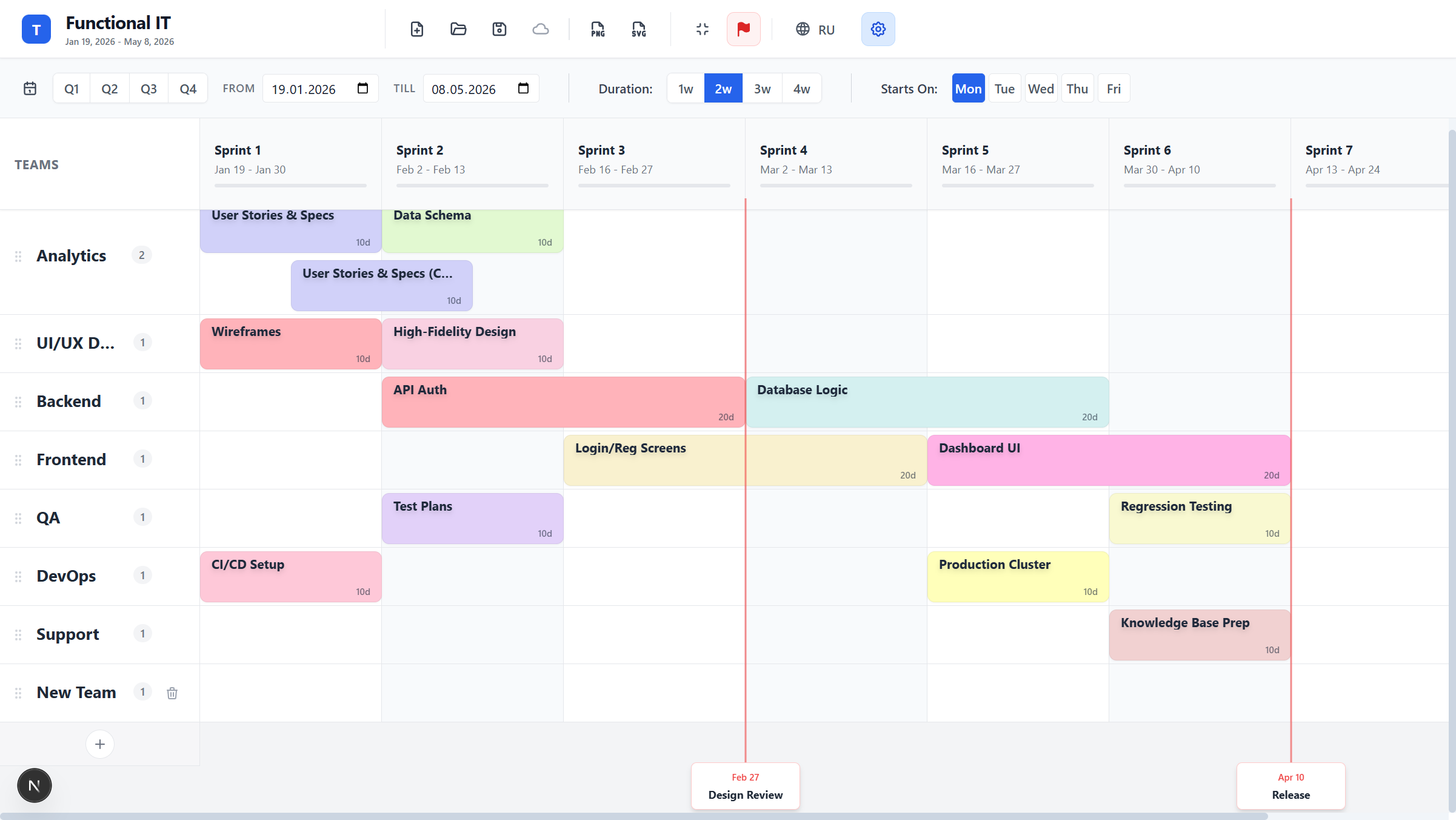
To rename a team, simply click into the text field and type. Changes save immediately.
Reordering & Deleting
Grab the 'grip' icon handle near the team name to drag the row up or down. This is useful for grouping related teams.

Click the delete icon to remove a team. If the team contains features, a modal will ask if you want to move them to adjacent teams or delete them.

3. Working with Features
Creating & Editing
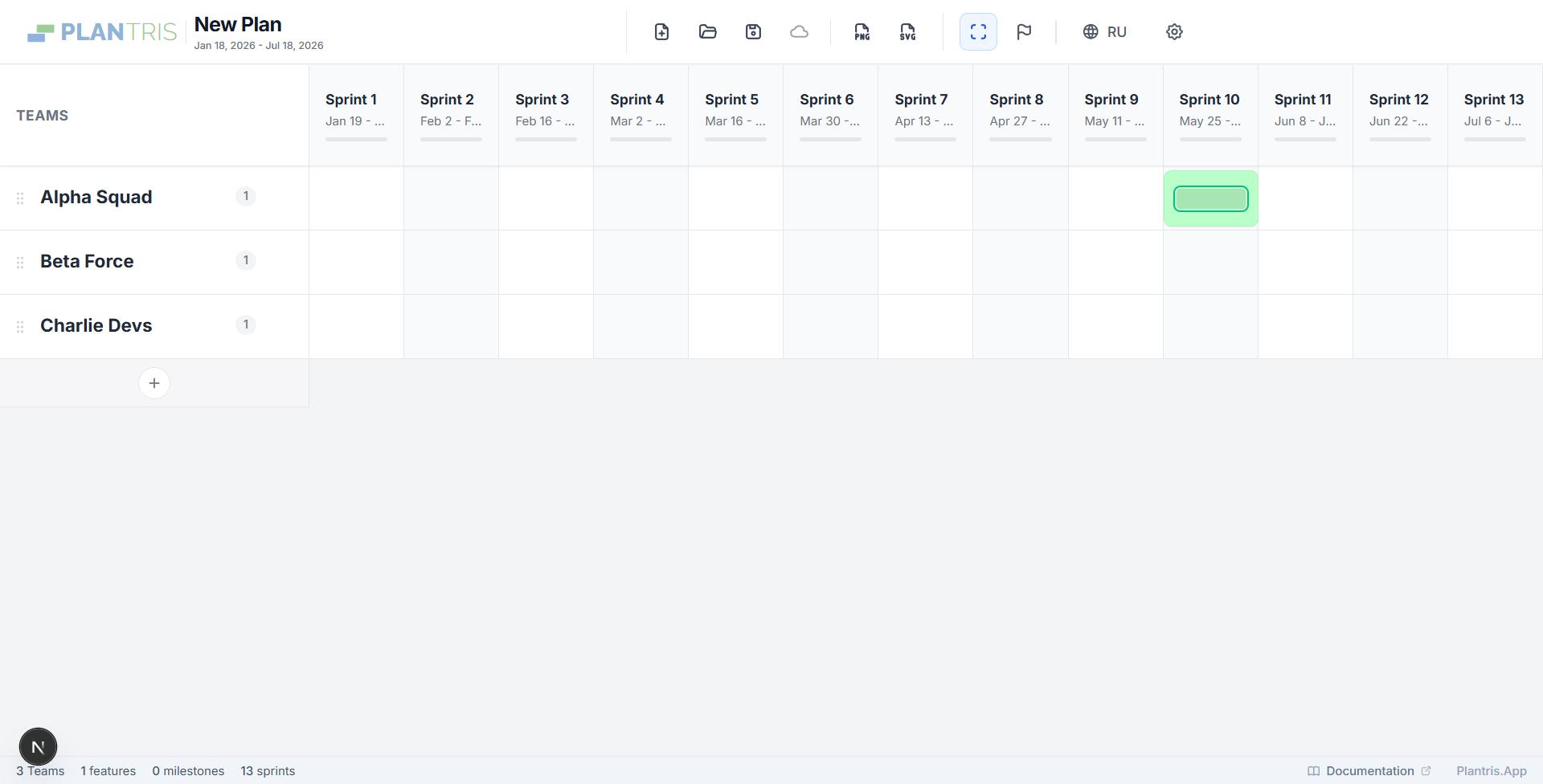
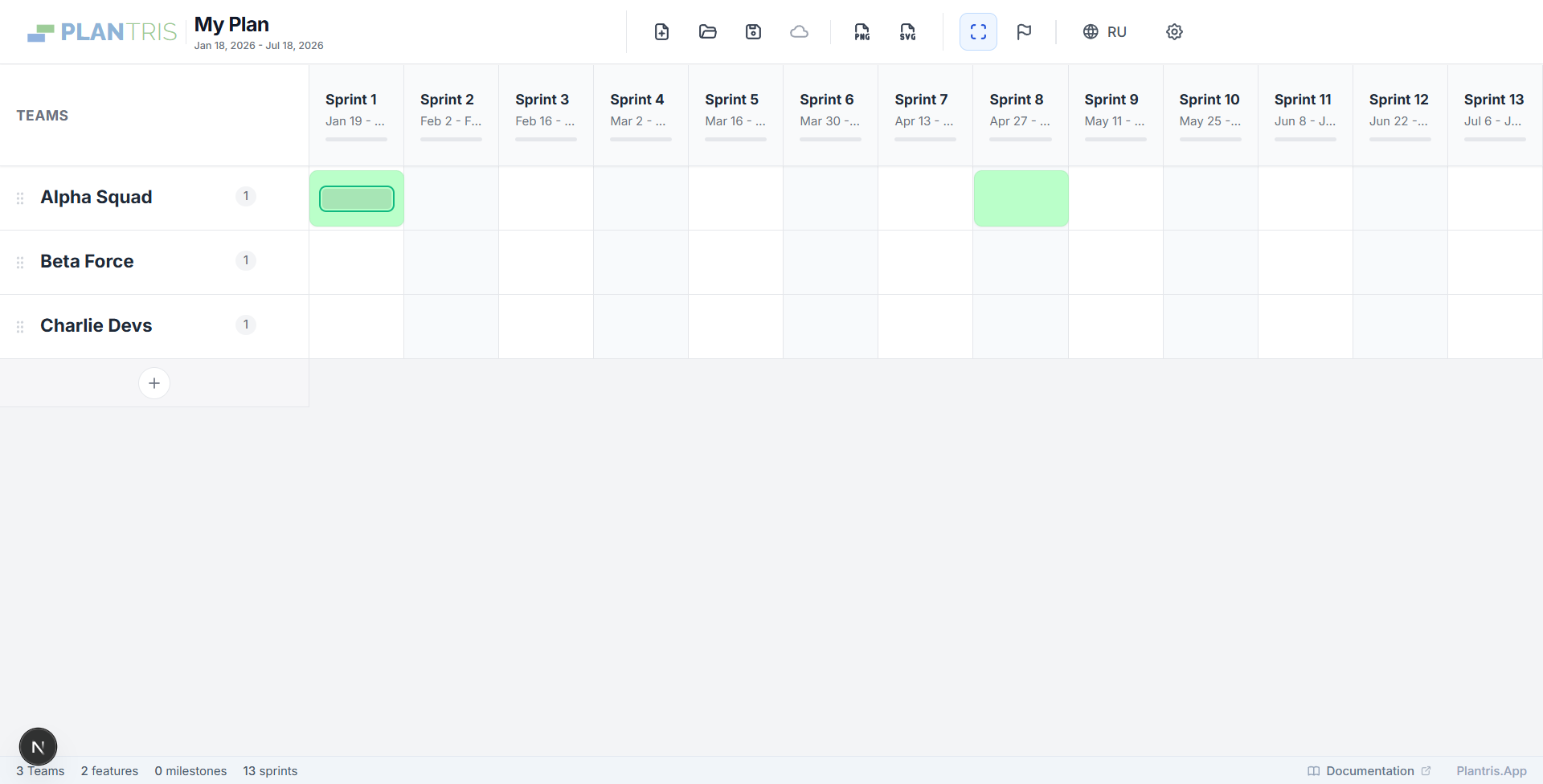
Click any empty cell to create a feature. The title opens for inline editing immediately. If you leave the title empty, the feature is deleted.
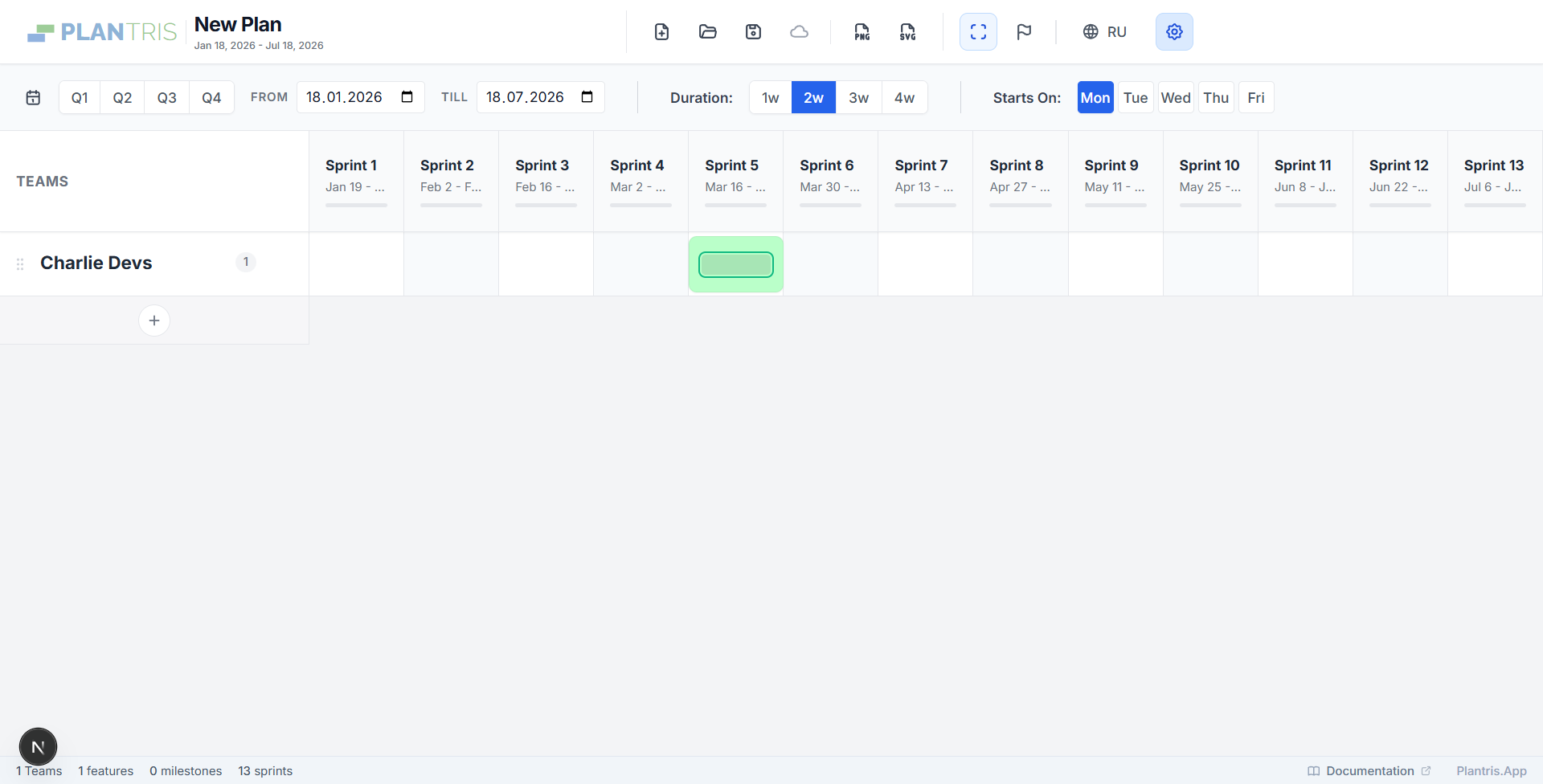
You can rename features inline by double-clicking, or open the full settings modal by clicking the 'Edit' (gear) icon on hover.
Moving, Resizing & Snapping
Drag features to move them. They 'snap' to sprint boundaries, other features, and milestones for precise alignment. Hover over the edge to resize (change duration).
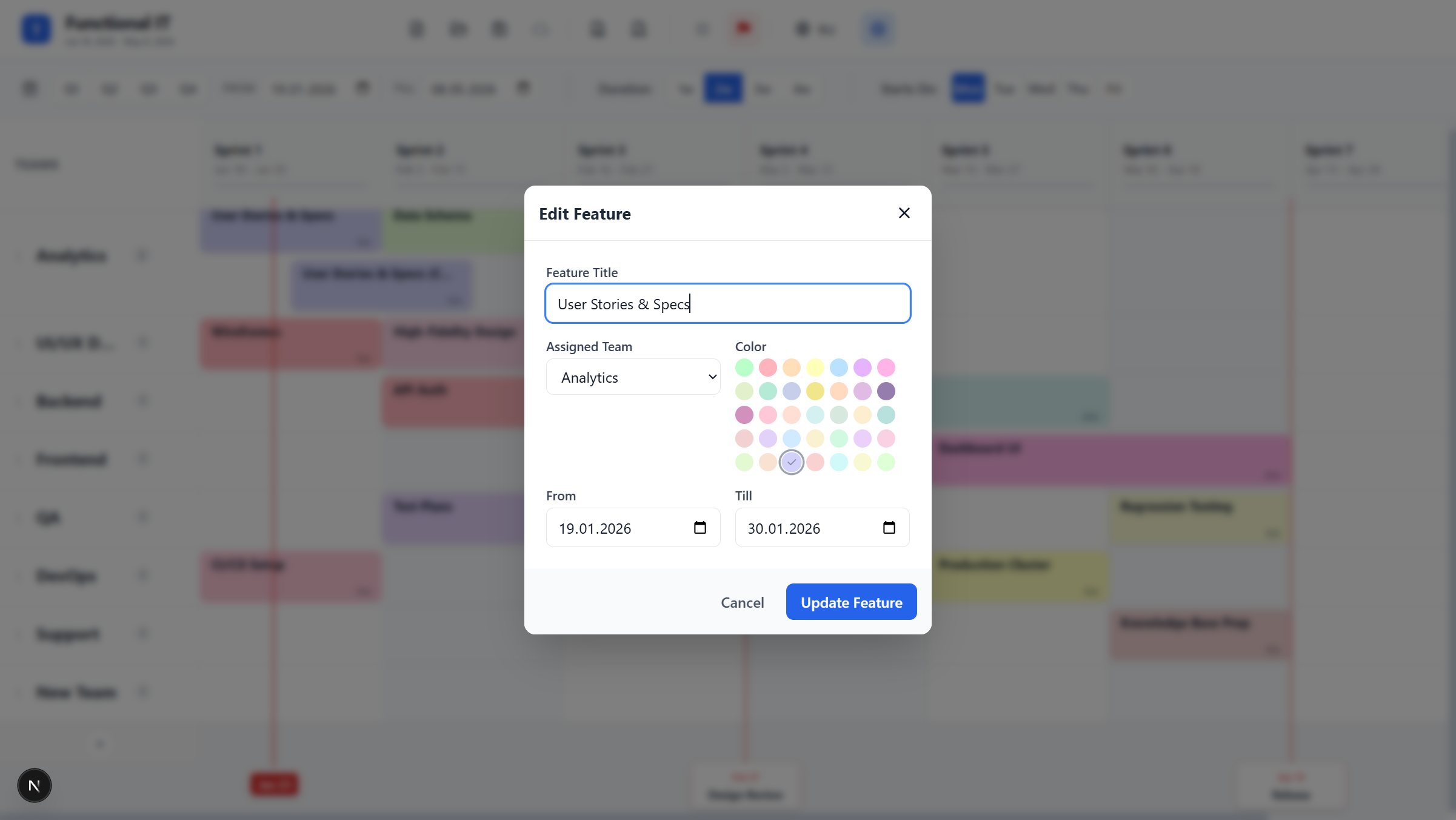
Feature Settings Modal
The modal allows you to set the assigned team, precise start/end dates, and color.
Advanced Actions
- Duplicate: Hover and click 'Duplicate'. The copy is shifted forward by one week.
- Color Rules: Colors are auto-generated from the title. Same title = same color. You can manually override this.
- Multi-Select: Hold Ctrl/Cmd and click multiple features to move them as a group.
- Insert Between: Drag a feature to the boundary between two others to insert it and shift subsequent items.
4. Milestones
Milestones are vertical dashed lines for key dates. Toggle 'Milestone Mode' by clicking the flag icon in the header.
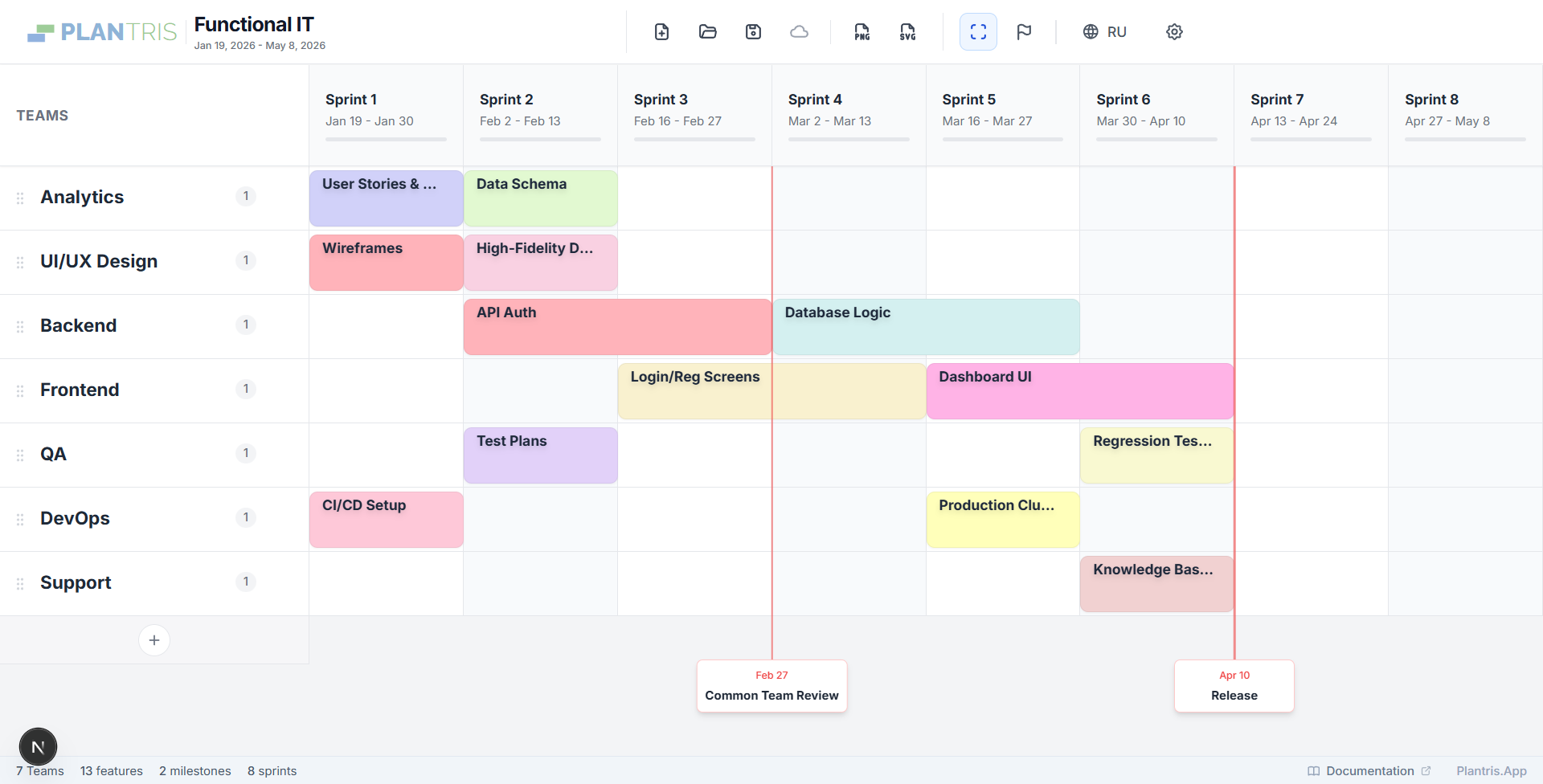
Click on the grid to create one. Click the label to rename. Drag the line to move it. Hover the label to delete it.
5. Settings & Configuration
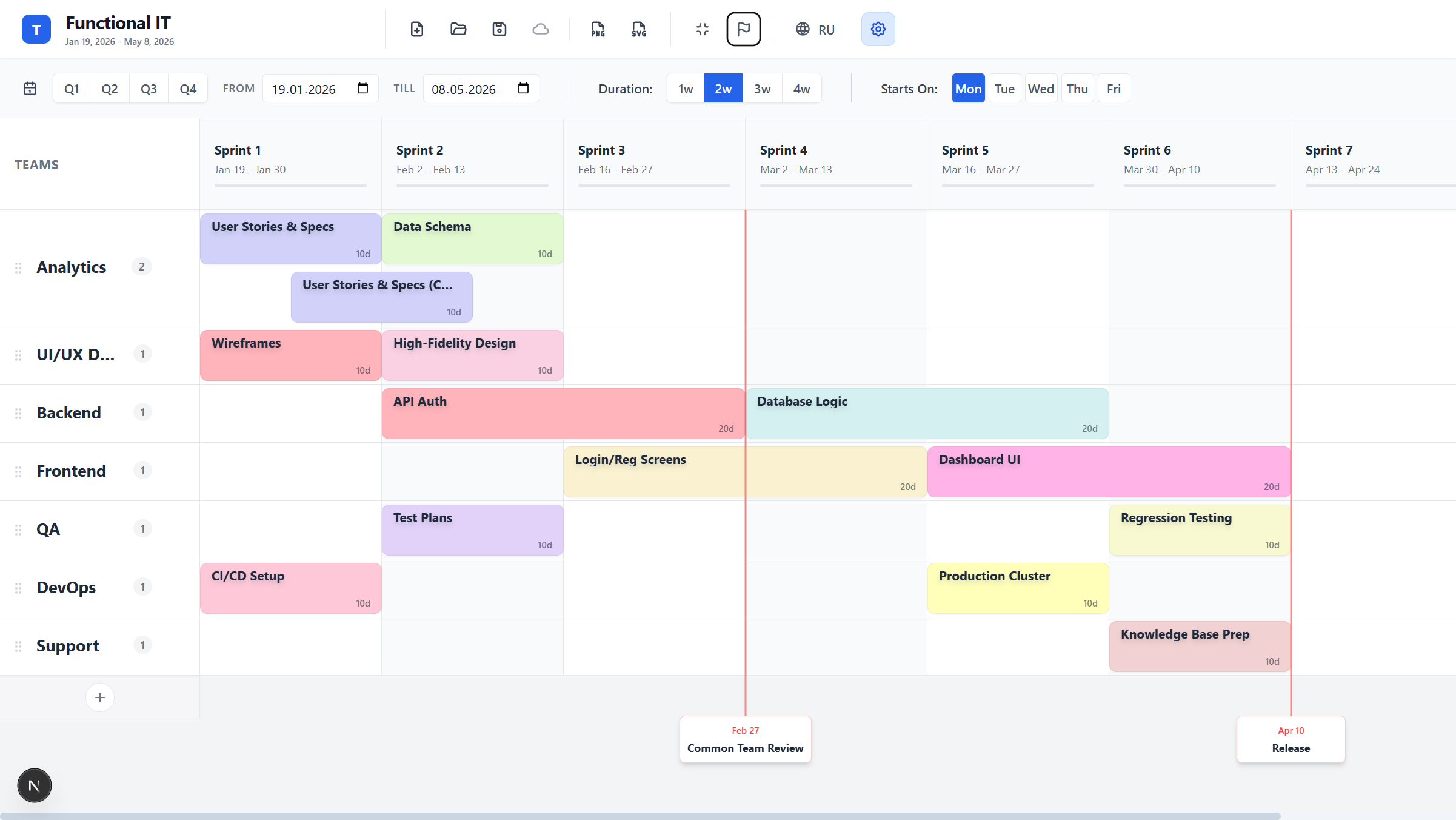
Configure your timeline rhythm. Changing the 'Planning Start Date' shifts the entire plan (all features and milestones), which is great for rescheduling.
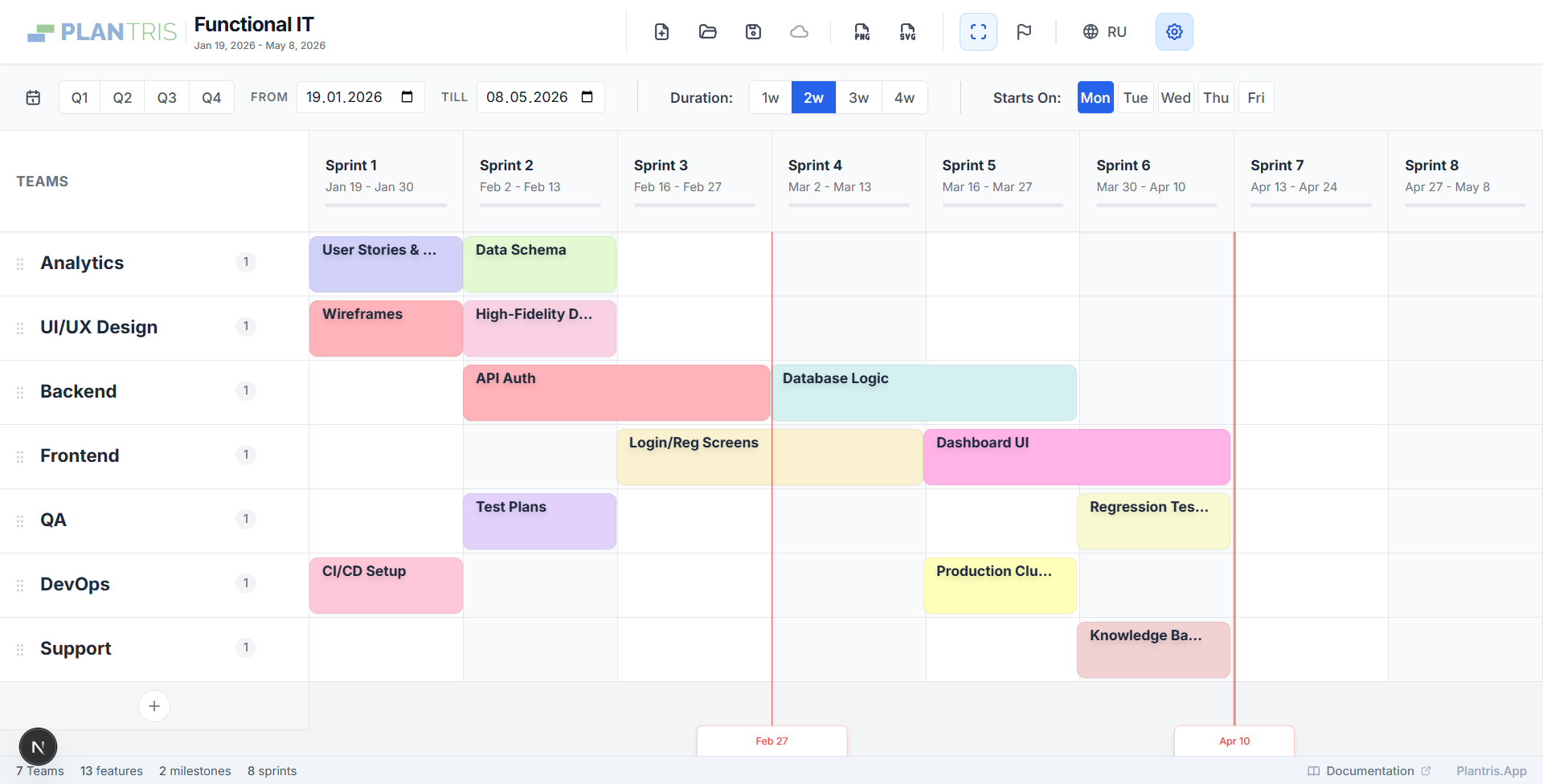
- Duration: 1-4 weeks per sprint.
- Horizon: Select specific quarters (Q1-Q4). The plan title updates to reflect the selected range (e.g., Q1 2026 or Q1-Q2 2026).
- Start Day: Align sprints to your weekly cadence (e.g., Monday).
6. Creating Plans & Templates
Click 'New Plan'. If you have unsaved changes, you'll be prompted to save a draft or discard. You can start blank or use a template.
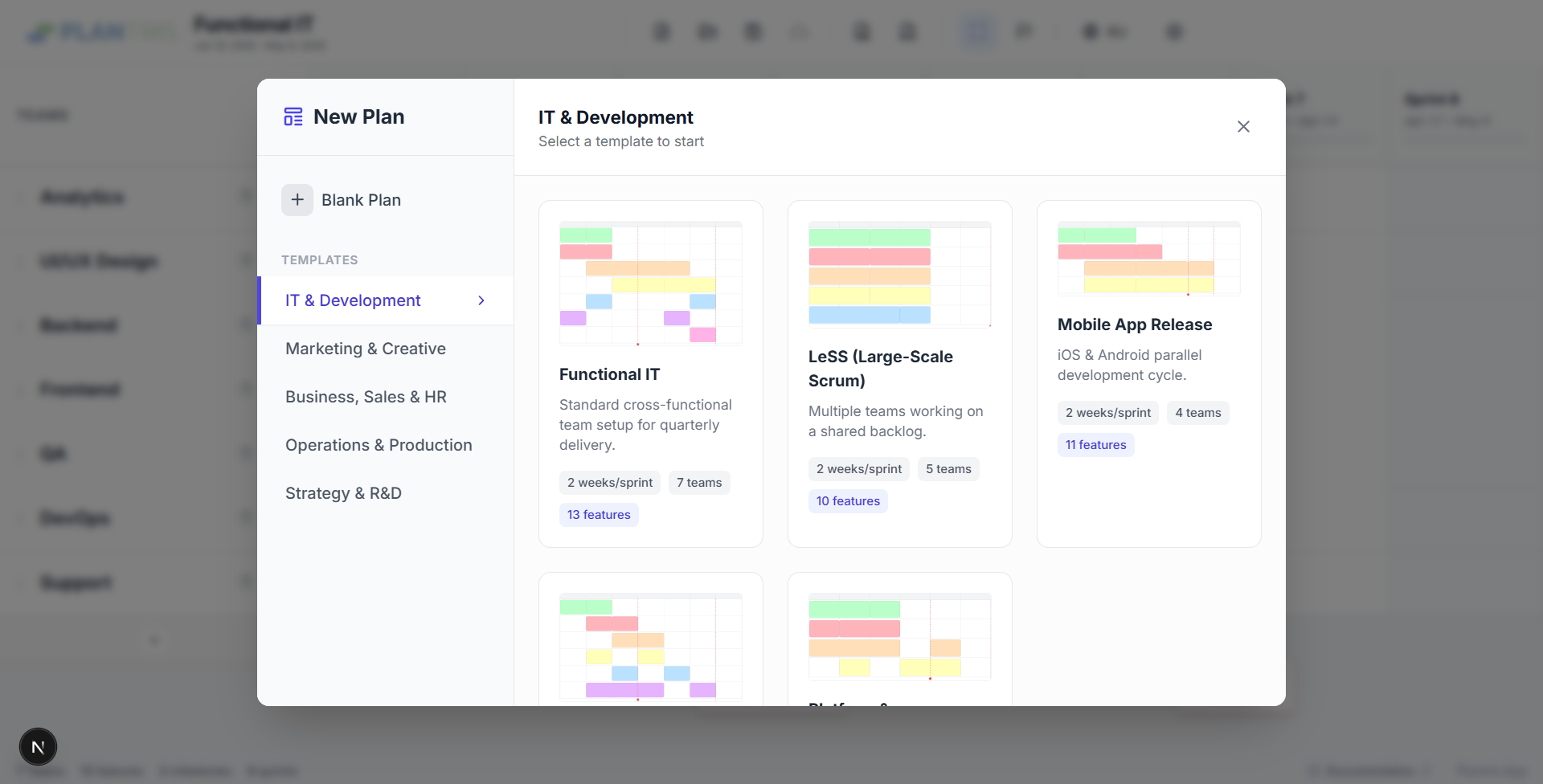
Templates (e.g., Cross-Functional Team, Game Studio) provide a starting structure with pre-defined teams, which you can then customize.
7. Drafts & Auto-Save
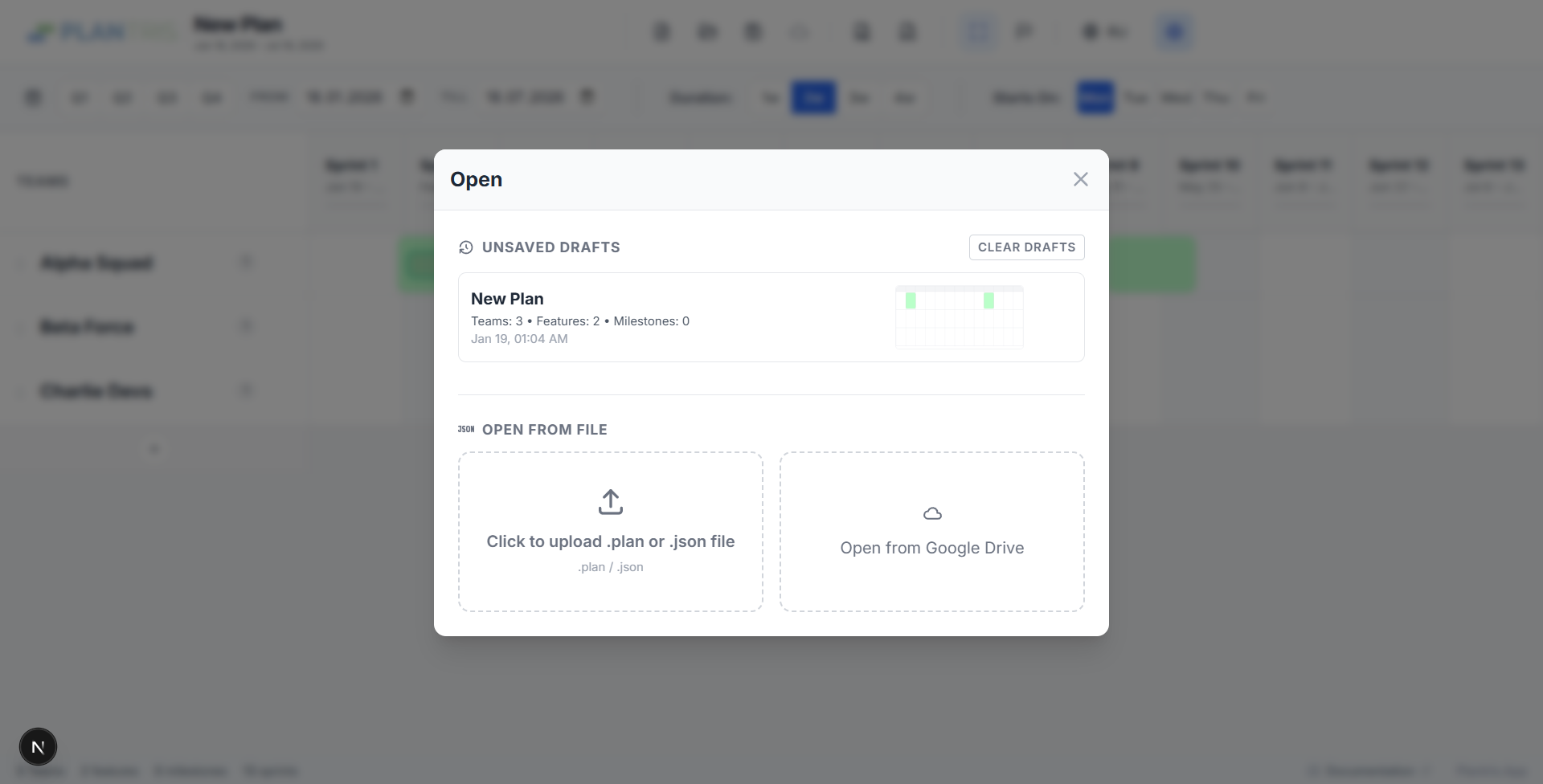
Plantris automatically saves your work to your browser's Local Storage as a 'Draft' every ~5 seconds if changes are detected. You never lose work if you close the tab.
Managing Drafts
Click 'Open' to see the list of auto-saved drafts. You can resume previous sessions or clear old drafts.
8. Google Drive Integration
Plantris integrates directly with Google Drive for cloud storage and sharing. This happens entirely in your browser using Google's Identity API; no data goes to our servers.
Saving to Drive
Click the Google Drive icon in the header. If not signed in, you will be prompted to authorize. On the first save, you'll pick a folder. The plan is saved as a .plan JSON file.
Opening from Drive
Click 'Open' -> 'Open from Google Drive' to browse your Drive files and load a plan.

9. Export, Import & Images
File Export (.plan)
Click 'Export' (Floppy icon) to download a .plan file. This is a JSON file containing all teams, features, and settings. You can share this file or keep it as a backup.
Opening Files
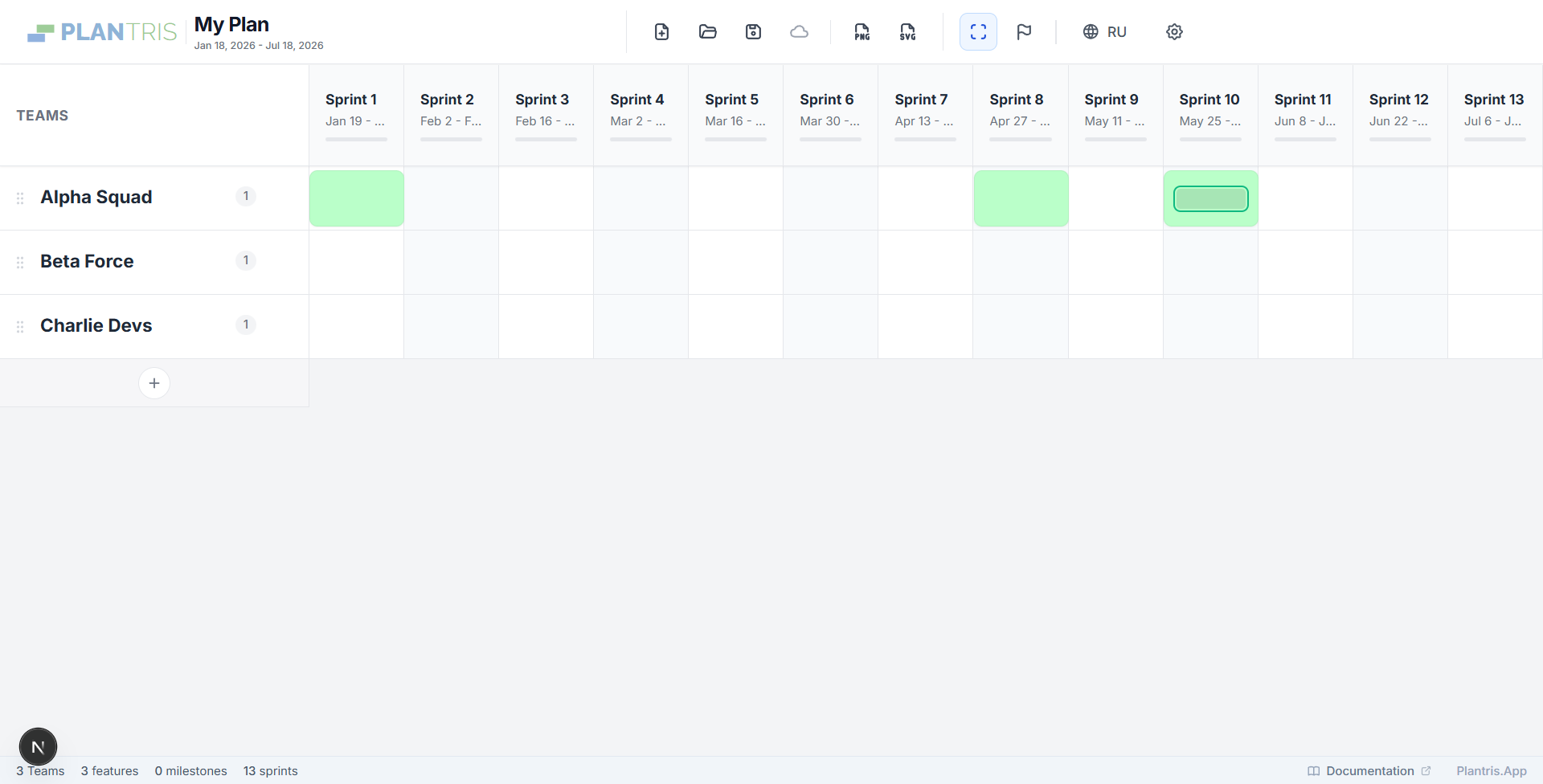
Click 'Open' to load a local .plan file from your computer.
Image Export (PNG/SVG)
Use the PNG or SVG buttons to export high-quality images of your plan. PNG is great for slides; SVG is perfect for editing in design tools like Figma.
10. View Controls
Use 'Fit Screen' to compress the timeline to fit your window width. This is useful for seeing the big picture of long plans.
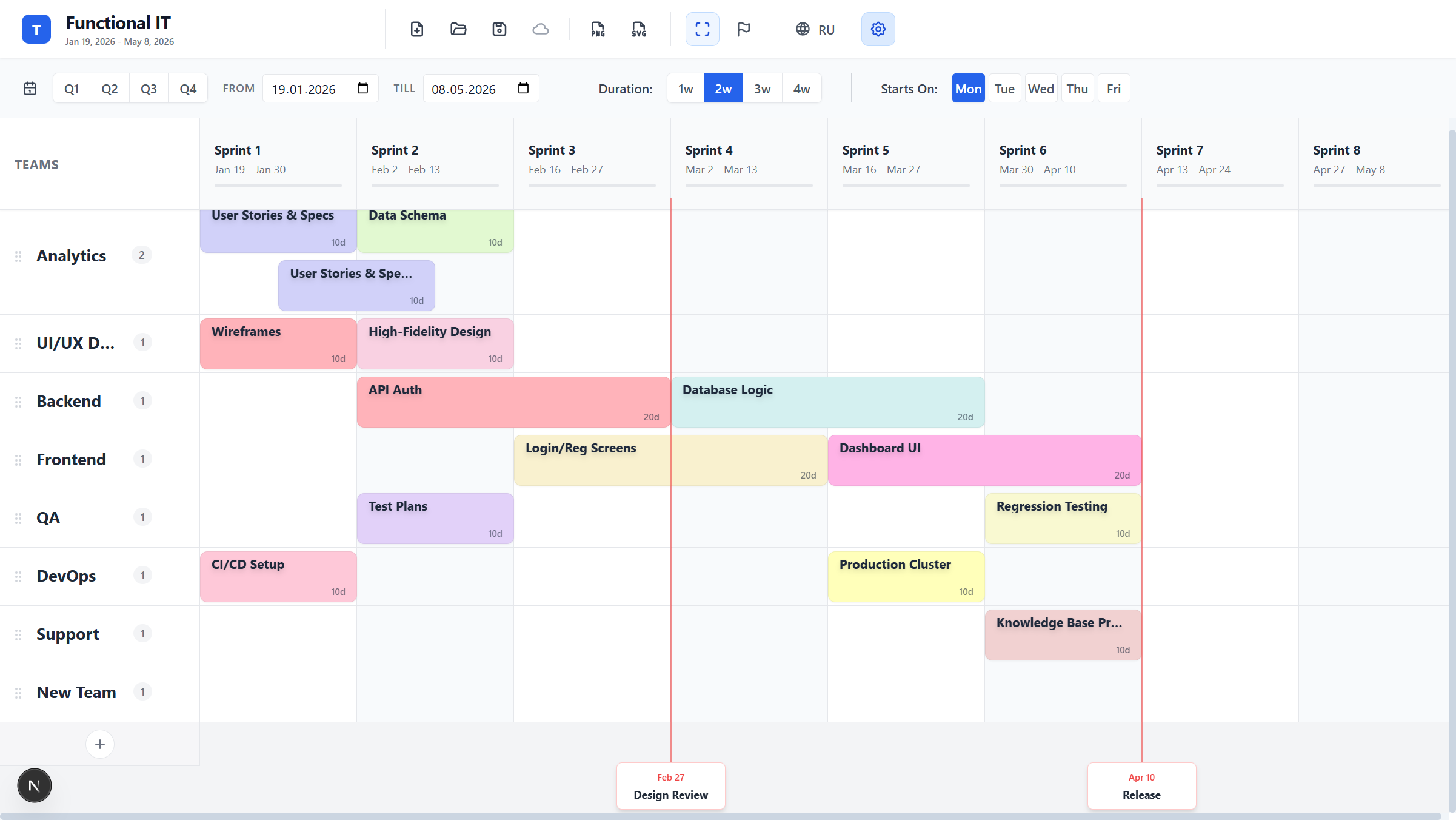
You can also zoom the timeline using Ctrl + Mouse Wheel (Cmd + Wheel on Mac).
11. Shortcuts & Privacy
Keyboard Shortcuts
- Ctrl + Wheel: Zoom timeline
- Ctrl + Click: Multi-select features
- Esc: Close modals
Privacy Architecture
Plantris runs 100% on the client side. No backend server stores your plan. Data exists only in your browser (LocalStorage), on your hard drive (Export), or in your private Google Drive.